
Userback Configuration
Jump media use Userback to be able to collect application issues from the clients testing and to create support tickets for any issues that need to be investiagated and resolved.
These are managed from within steve.walsh@wejumphigher.co.uk Userback account.
It is required that the Userback is configured with the ClickUp API to auto populate any submitted client requests to the projects support list within ClickUp.
Automations will be created on the ClickUp support list which will notify any project managers and developers of the support request ticket.
It is required that the Userback application widget is only accessible for the client and website administrators.
Userback Setup
- Login to Userback account: https://app.userback.io
- Set up project and update settings to set the application domain.
- Configure the Userback widget to the recommended settings.
Recommended Settings
- Web App Feedback Template
- Update widget styling to match website branding.
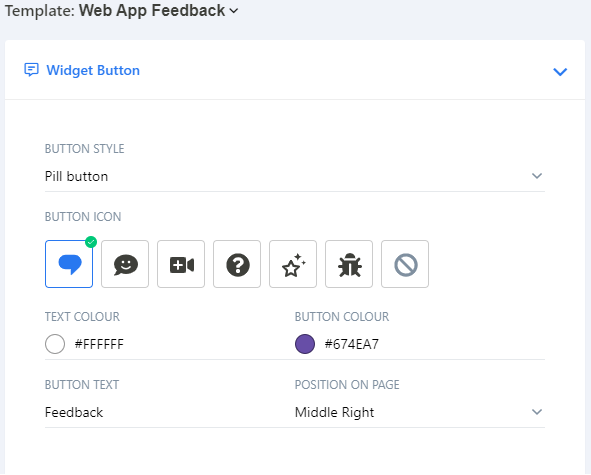
- Update the feedback selection settings & update wording.
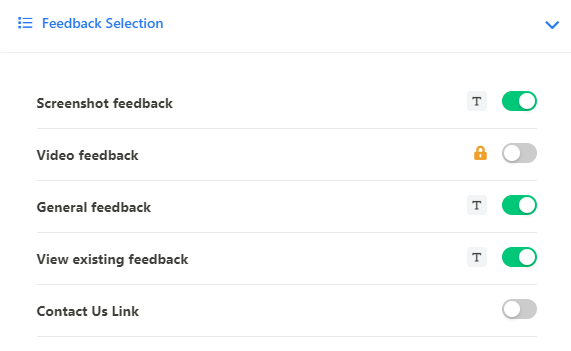
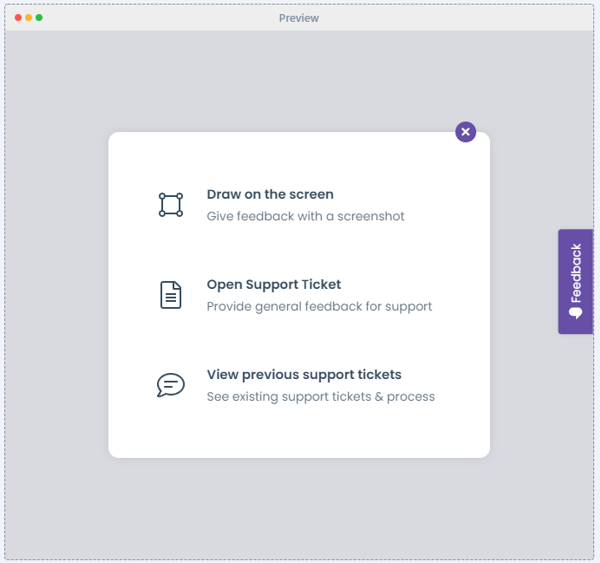
- Update additional tweaks to "Display form in modal", "Always include screenshot" and "Show help in annotations tools".

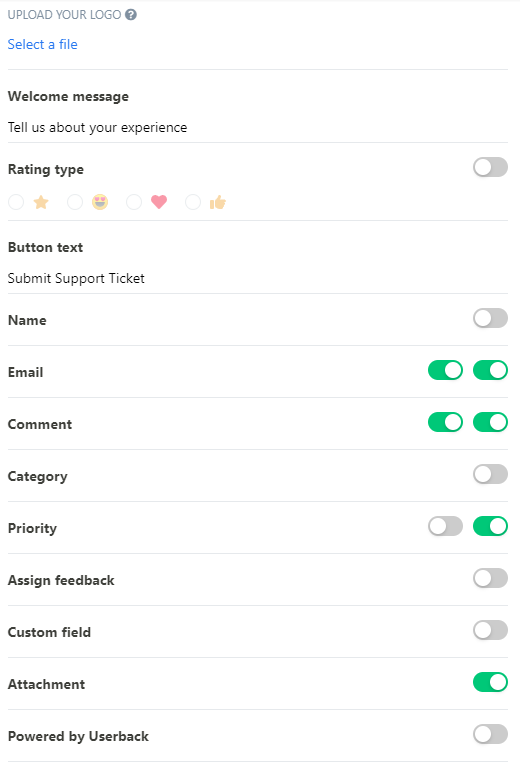
- Update the feedback form settings
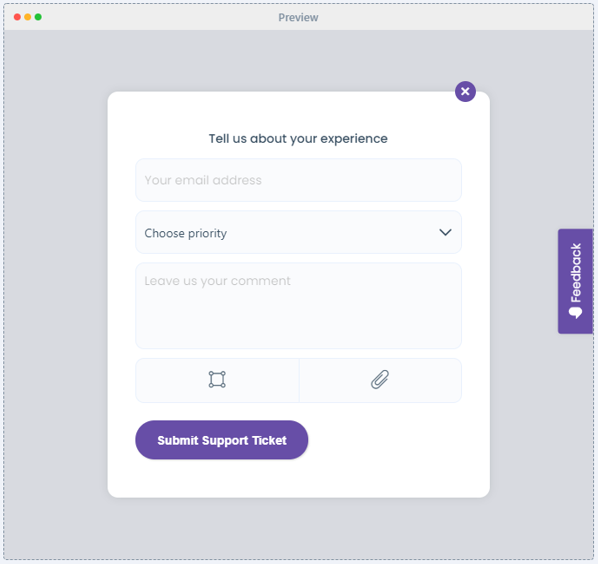
Installing the Userback Widget
To ensure that the widget only appears for the client, it is required that the widget code for Userback is conditionally loaded on application for website administrators or certain website users.
Below is an example of how to only append the userback tracking script for wordpress admin users.
Please note that this will be need be updated as required to correctly source the javascript file containing the Userback widget script.
/**
 * Add Userback Tracking Sctipt To Website
 * Should only appear for admin users / client.
 */

add_action( 'wp_enqueue_scripts', function() {

    if( is_user_logged_in() && current_user_can( 'administrator' ) ) {

        wp_enqueue_script( 'userback-tracking', get_stylesheet_directory_uri() . '/javascript/userback-tracking-script.js', array(), '1.0.0', false );

    }

});